System Path Diagram
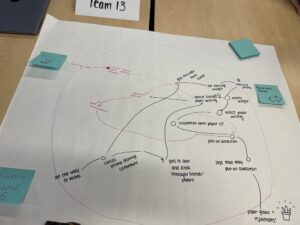
The system path helped us identify paths that are most commonly used by all users, which helped us prioritize which wireflows we should construct. We decided to use the three main personas that we came up with earlier, to tease apart the differentiators between some of the different paths taken by different types of users. We noticed that there was still convergence at some point, or interaction between the different users based on the different ways they interact with each other.
Bubble Map
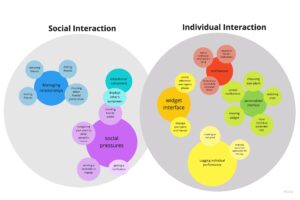
We decided to separate our bubble diagram into the social and individual experiences. While everyone has an individual experience with the widget/app, we also wanted to understand how social pressures come into play. As a result, the two largest bubbles are the “social pressures” and the “logging individual performance” bubbles because they are of the highest importance. The smaller a bubble is, the lower priority it is. However, we realized that most of these are important and we decided to continue wireflowing while trying to incorporate all of the largest bubbles.
Individual Wireflows
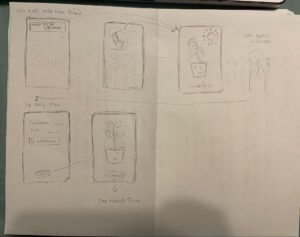
Kaitlyn: This flow was for when a user gets prompted by their friend to check on their plant. They could either click on that notification or be prompted to notice their wilting plant on their homepage, which would bring them to their plant page. The plant page also shows the weather in the background (sunnier weather means the plant wilts faster)– we thought that this would help emphasize the importance of wearing sunscreen in sunnier weather. They can then click on the log button to log their sunscreen use– after that, they’re taken back to their plant screen, where it is now looking much better. This is so that users feel more invested in the status of their plant if they can see how their actions affect it.
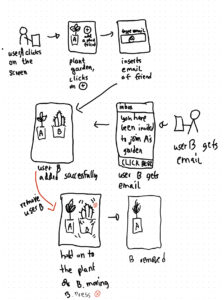
Labib: Flow to add/remove friend’s plant: We thought it was important to show this flow as adding or removing a plant is the foundational step to curating your own garden of accountability plant buddies. A plant friend can be added by inserting someone’s e-mail address and by accepting the invite (and thereby downloading the app/widget). A plant can also be removed.
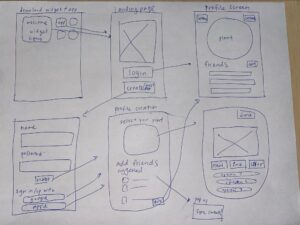
Tiffany: Download the widget, then login or create an account, and then customize one’s plant and initial friend list. We thought that it is important to be able to create a personalized plant and friend garden so that users have a larger emotional connection to their plant once the focus shifts to sunscreen application. Users can choose ways to customize their plant to their liking, and then sync their contacts and add initial friends that will be displayed in their widget and app.
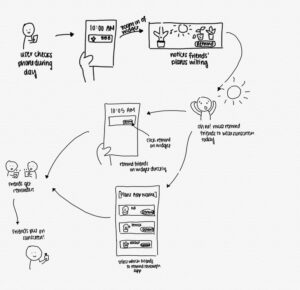
Michelle: Flow to remind friends: To keep each other accountable and include the social aspect in putting on sunscreen, the user must be able to send out reminders to friends in addition to receiving reminders. We include some of the friends’ plants on the widget in order for the user to easily see if some of their friends’ plants are wilting. We included two ways to remind friends for ease: we included one reminder button on the widget itself to reduce friction, and a way to individually remind friends on the app itself.

Kayla: Flow to discovering new brands of sunscreen from friends on the app: One of the educational components of our app is user’s learning about the type of sunscreens other people use. A user can see other user’s plants as well as the type of sunscreens associated with their friends’ plants. A user can click on the ‘garden’ which is the list of their friends on the app. Clicking on a friend would go to a new page which would display the plant larger on the screen and have the owners name, type of sunscreen, % of sunscreen usage, and friends skin type as well. There will be a link associated with the sunscreen so users can click on the sunscreen and it’ll take them to an Amazon pop up which would allow them to purchase the sunscreen. This will allow them to purchase sunscreen quickly and allow them to try different sunscreens that may work better for them.
Cohesive Wireflow
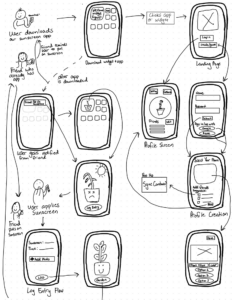
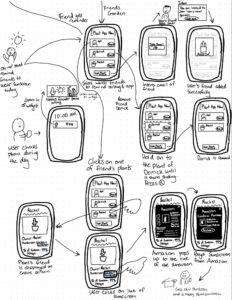
General Flow of User: After iterating and synthesizing our individual wireflow we came to a consensus and created this cohesive wireflow. The general flow starts with the user downloading our app. Once downloaded they can access the app through a widget or an app. Once they click on either or it will bring them to our login / create a new user page. If the user selects the login button then it will take them to the profile screen. If they click on the create new user button it will take them to a create login credentials page. This page will allow users to either put in their own username and password or sign in through Apple or Google. Once they are done creating their credentials to sign in it will take them to a profile creation page which is where they can select their plant as well as add friends. We also have an option where they can click on add friends and a pop up screen will display asking them if they want to sync their contacts. When clicking on the plant on this screen it will take the user to a customize page for them to customize their plant. Once they click done it will take them back to the profile screen.
The next flow in our wireflow is when a friend notices that the user’s plant is dying and they want to remind the user to put on sunscreen for them to make their plant healthy again. This flow begins with the user receiving a notification from their friend that says, “Friend: Put on Sunscreen.” The notification then disappears and the user sees their plant dying on the widget. They then click on the widget which takes them to a screen for them to log their sunscreen. User puts on sunscreen and then logs entry onto the app putting what type of sunscreen and time. They also have the option on this page to add a photo of them wearing the sunscreen. After they are done filling this page out they will click the log button which will take them to a page showing their plant happy and healthy. Next the user has the option of exploring the “garden” which is a page showing a list of their friends on the app.
When the user clicks on the Garden button they will see a list of their friends and their plants. Users have several options of what they can do on this page. A user can add a friend by clicking on the button below that reads, “Add Plant Friend.” Once a user clicks on this an email popup page will appear and allow the user to put in their friend’s email address. Once they put it in the email their friend will receive an email that will notify them that the user has invited them to our app and they can ‘Click Here’ to navigate to the app store to download our app. Once the friend creates their plant profile an added popup will display on the user’s screen, notifying them that their friend has been added. To remove a friend, a user just has to hold down a user’s profile until it starts to shake. Once it starts to shake an ‘X’ will appear on the upper right corner. This will allow the user to click on the ‘X’ and delete their friend.
Next, our user can receive widget notifications on their lock screen about their friends’ plants wilting. The user sees the notification and then goes to the ‘Garden’ (page for the list of their friends) and clicks on the ‘remind’ button of the friend they want to notify. Once clicked on, their friend will receive a notification to put on sunscreen which would nudge them to put on sunscreen.
Our last flow in our wireframe is a user clicks on one of their friends, in this case they click on their friend Rachel. When they click, it will take them to their friends profile page which will display the friend’s name, sunscreen they use, and % of sunscreen usage. If the user is interested in their friend’s sunscreen they can click on the sunscreen name and this will bring up an Amazon popup which will show the user a description of the sunscreen. Since it’s Amazon, the user can add the sunscreen to their cart and buy it. Once they do that, our frame ends with a happy user getting a new sunscreen delivered to them.