System Path
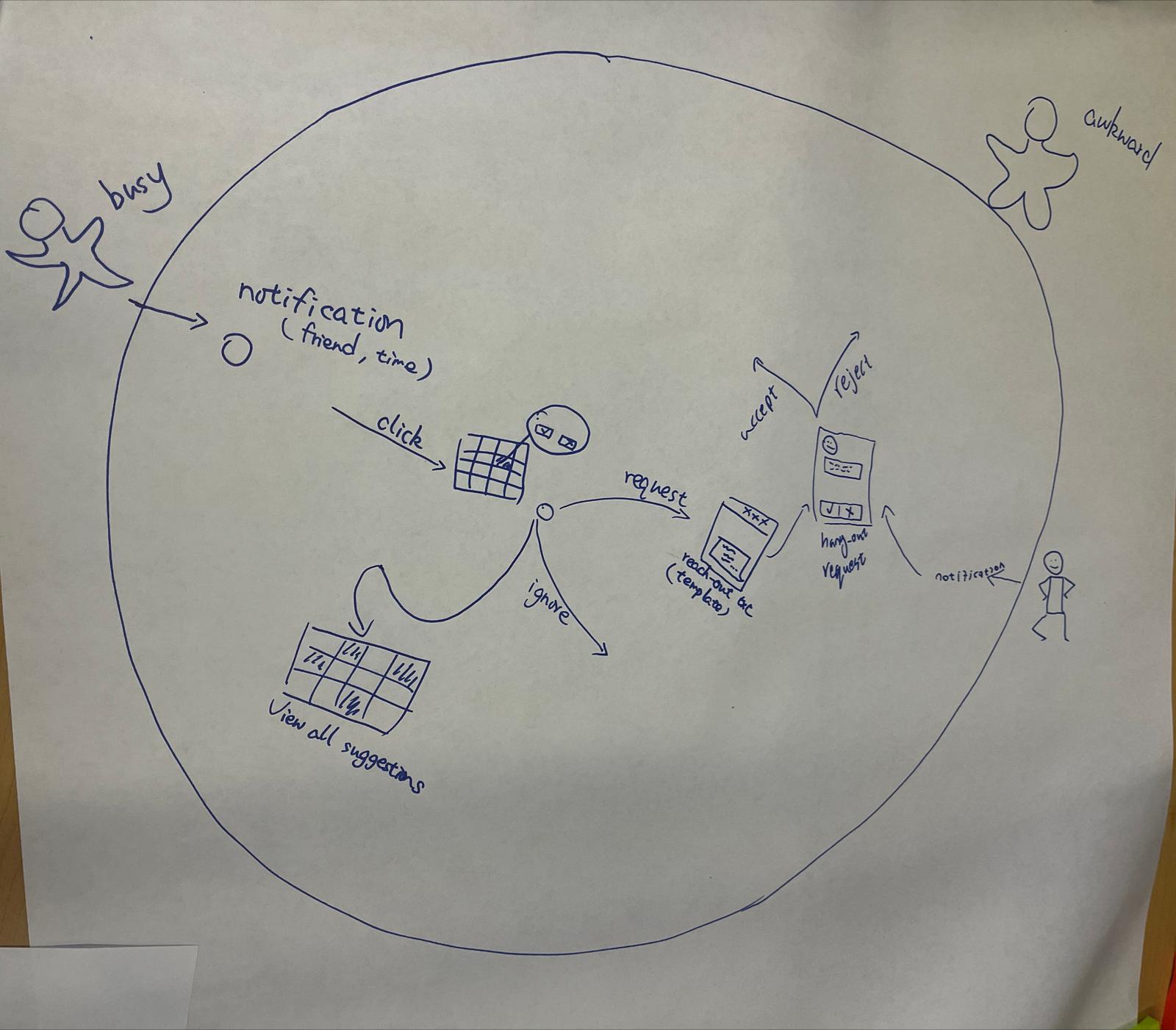
The following figure shows how we expect users to enter and exit our product.
- When the user gets a notification of a recommended meetup time with a certain friend, he clicks on the banner and enters the interface of our app.
- He’ll see his calendar with the relevant spot highlighted, and two buttons will pop out: continue or ignore.
- If he continues in step 2, he’ll be directed to the chat box where he formulates an invitation to his friend.
- Then the other user will be notified, and the friend chooses to accept or reject.
- Once the friend responds, this user is notified, and he exits the app.
- If he ignores in step 2, he’ll be directed back to his calendar with all open requests and recommendations highlighted in different colors.
- He could click on any open spot and repeat step 3.
- Or he exits the app without arranging anything.
Bubble Map
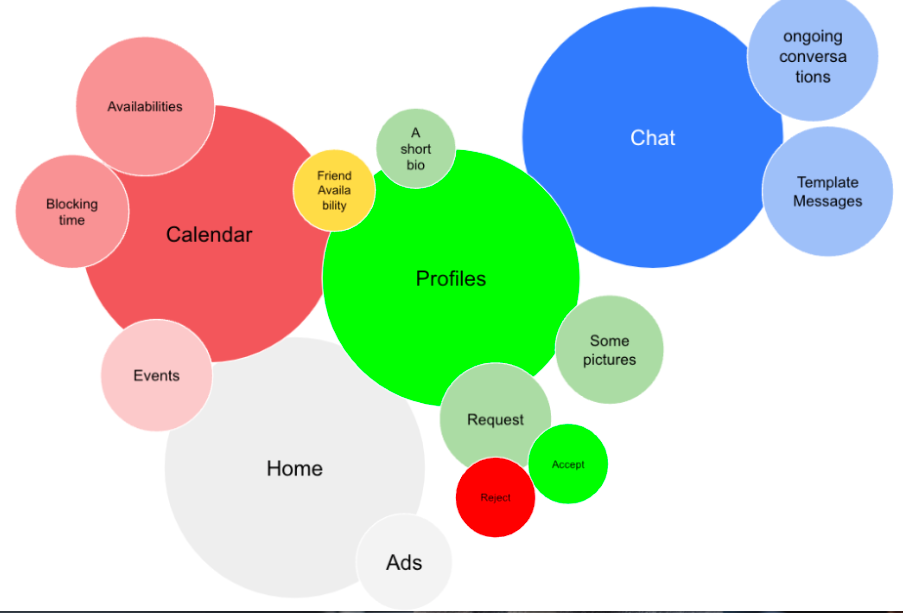
We primarily focused our bubble map on the 4 main tabs that we have in the app, and the intersection and the intersections between them for getting a task done. It was very interesting to see how some of the functionalities overlap.
Wireflow
System path and bubble map suggest that our product should have four main functionalities:
- A homepage that summarizes meetup requests and event advertisements
- A calendar page that visualize availability of users and their friends
- A friend page that allows users to cross examine any friend’s calendar
- A chat page that allows users to interact and finalize meetup details
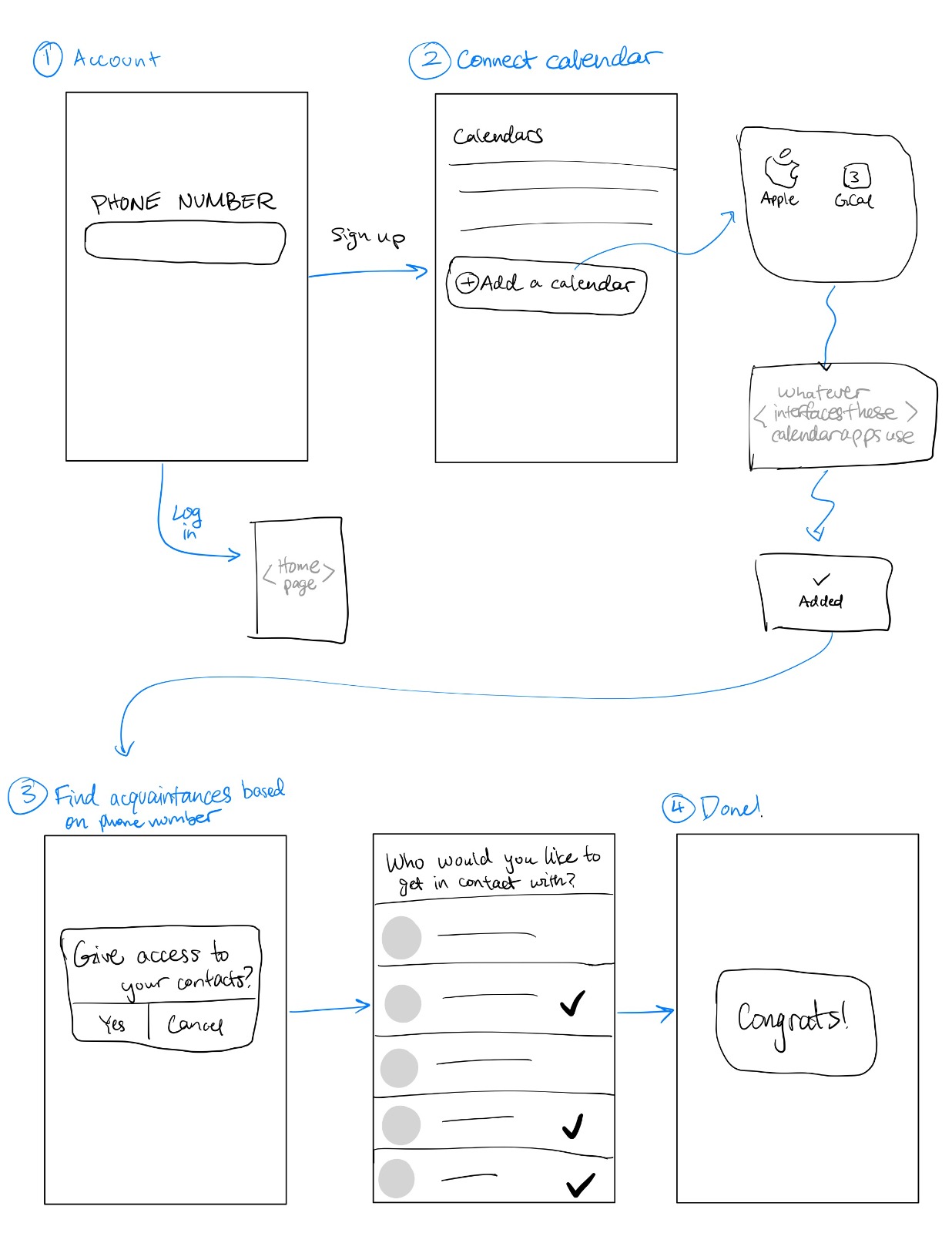
These functionalities are based on users’ calendars. In order to avoid the burden of inputting calendar manually, we decide to let users sync their calendars (Google, Outlook, etc.) when they sign up. The following subsections show our design ideas for the prep step which is login and calendar syncing, followed the four main functionalities above.
Login & Sync (Millie)
Users log into the app or sign up via phone number. Upon signing up, they can link their calendar(s), so that we can find when they’re available or not. They also give access to their contacts, through which we can find their acquaintances who are already on the app (this app assumes that many other people have already downloaded and are using it!), so that we can eventually find mutual availability between them and their acquaintances.
This current onboarding is all incredibly functional, but does not explicitly teach users how to use the app or explicitly inspire them to. If we have time, it would be cool to have a bonus screen that shows an example of their next week if they were to schedule meetings with their contacts, just so that they can start visualizing actually meeting up with them. Alternatively, to help users take a jump into the app, we could guide them through a lightweight version of actually finding availability and messaging an acquaintance about meeting up.
Tab 1: Homepage (Ni)
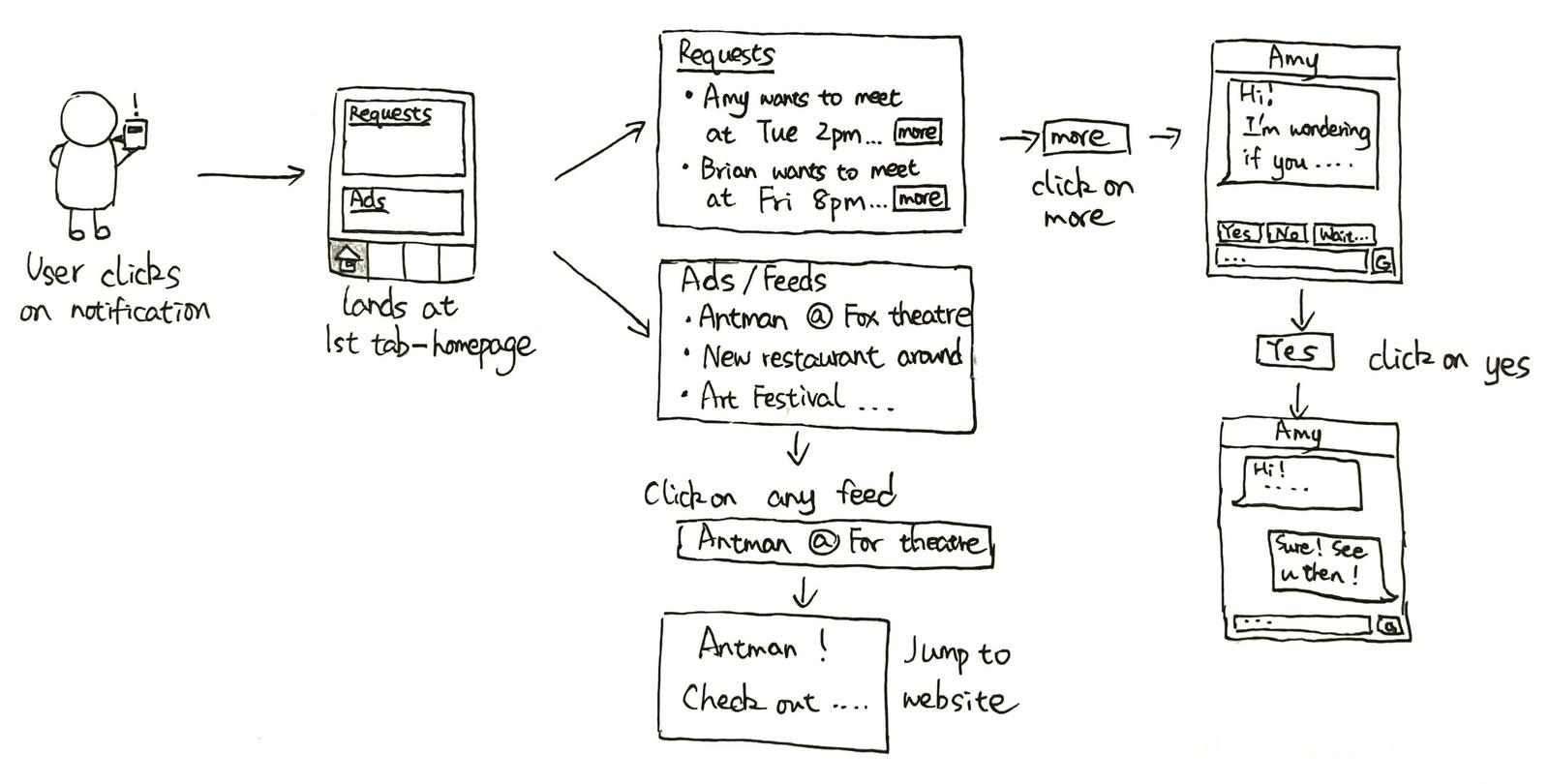
Homepage is the first tab of our interface. It includes the requests section on the top followed by the Ads section. The requests section lists all friend requests like “Amy wants to meet at Tue 2pm…”. When the user clicks on the “More” button for more details, he’s prompted to the chat box with Amy and sees Amy’s invitation message. He could either click on the quick response buttons sending out template messages we provide, or formulate his own reaction. For more details see the Chat section. The Ads section lists events around our user, and he can click on any news to be prompted to the outside event website page.
Tab 2: Friend List (Helen)
Ideally a minimal, straightforward, and simple process for a normally time-consuming, stressful back-and-forth task
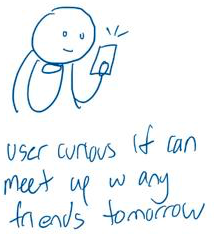
- Before bed, user curious to see if they can meet up with friends tomorrow
.
2. UI: See friends, friend’s calendar one friend at a time, overlapped with your calendar, only one day at a time. Aesthetically pleasing and calming. Color blend overlap areas mark slots during day when both friends can meet.
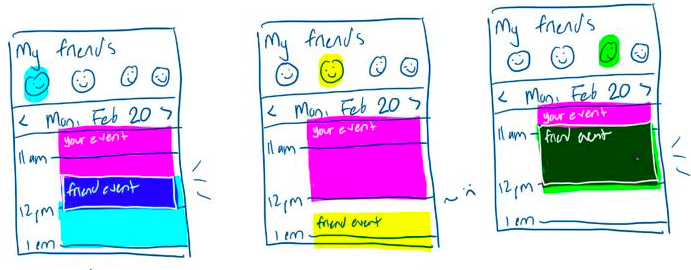
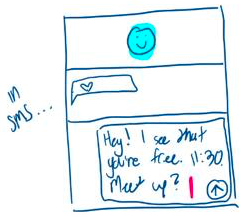
3. To reach out to friend, tap overlap color blend to open SMS app to send pre-composed message to friend. Pre-composed message will randomly vary. EX: “Hey X! I notice you’re free tomorrow 12pm. Wanna hang out?”
Tab 3: Calendar (Safiyah)
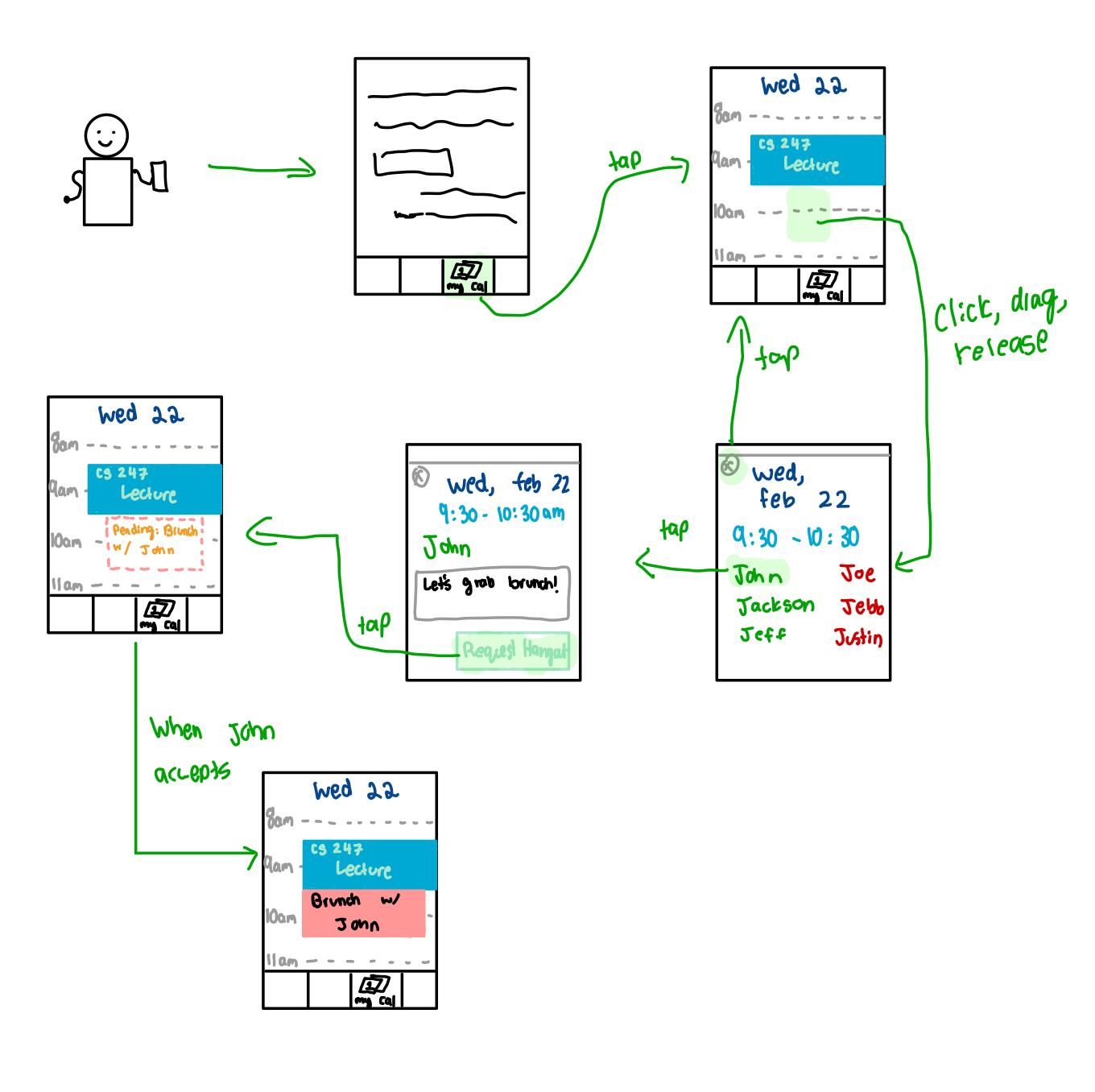
While tab 2 allows users to look through each friend’s calendar to find feasible time spots, tab 3 provides another way of searching, which is finding friend for a fixed time. Users’ calendar will be marked as occupied (colored in blue) or unoccupied. When users tap on unoccupied period, a pop-up window will display all friends who are also available at that time in green. By clicking on a name, the user can enter into the chat box with that friend, initiating an invitation for the selected time. Pending requests will appear as dotted area in user calendar, and becomes solid when the friend accepts.
Tab 4: Chats (Erfan)
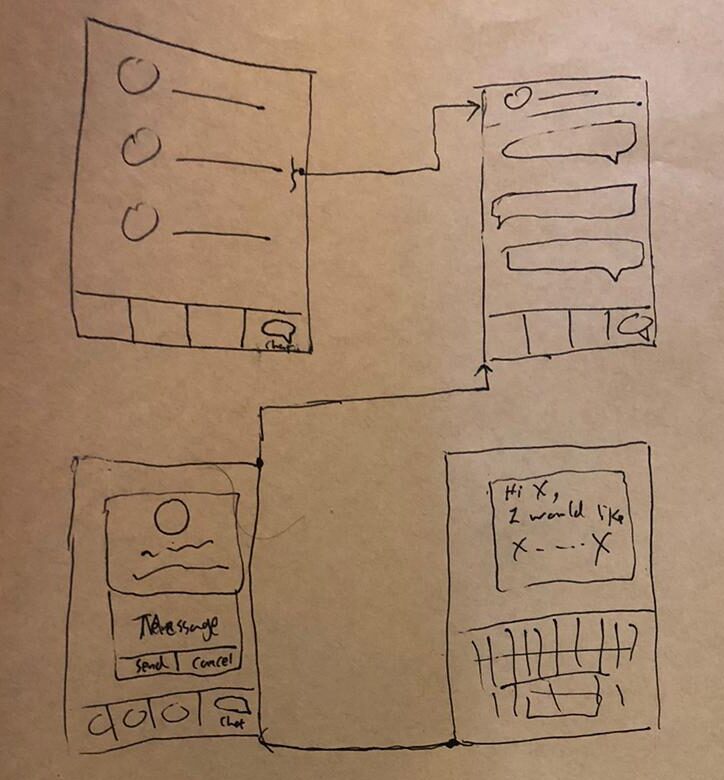
The users can reach the chat section through multiple routes. The primary location of it is in the rightmost bottom of the screen where users get to click on it and see the list of active on-gong chats. The other way of reaching there is when the user finds an interesting profile and wants to send a message to them. They can choose from one of the template messages that has a vibrant and friendly tone in getting the conversation started and personalize it for sending and after clicking on sending the request/message, they would be taken to the chat section.