Check out the workflows on figma here
Wireflow 1: Onboarding Flow
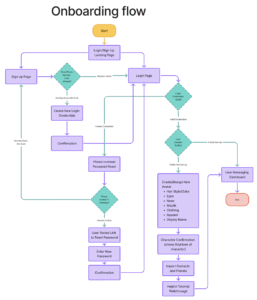
This wireflow captures the full onboarding experience which is the first thing users encounter when they download the app. The flow begins at a Login/Sign Up landing page that immediately checks whether the user’s phone number already exists in the system. This decision point is important because it lets returning users skip straight to login while routing new users through account creation, preventing friction for both groups.
For new users, the flow guides them through creating login credentials, receiving a confirmation, and then setting up their avatar. The avatar creation step is deliberate and central to the app’s identity: users can customize their hair, eyes, nose, mouth, clothing, and display name, making their character feel personal before they interact with anyone. Once the avatar is confirmed, users are prompted to import contacts and add friends, grounding the app in their real social network from the start. A brief tutorial follows to orient new users before landing on the messaging dashboard. For returning users, the flow also handles invalid credentials by routing them through a password reset path using a texted link.
Wireflow 2: Nudging Flow
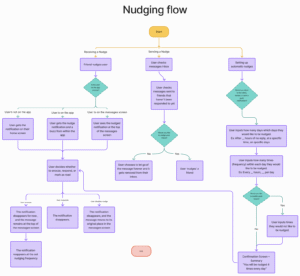
This wireflow covers the three core nudging scenarios: receiving a nudge, sending a nudge, and setting up automatic nudges. Together, these branches reflect the two sides of every relationship the app facilitates.
On the receiving side, the flow accounts for where the user is when a nudge arrives. If they are not on the app, they get a home screen notification. If they are already in the app, they receive an in-app buzz. If they happen to be on the messages screen, the nudge surfaces at the top of that screen. In all three cases, the user is then given the choice to snooze, respond, or disable the nudge, each with distinct and clearly mapped outcomes. Snoozing keeps the message elevated and brings it back at the set frequency, responding clears the notification, and disabling moves the message back to its original position. On the sending side, the flow is intentionally lightweight. Users check their messages inbox, see which friends have not responded, and decide in one step whether to nudge them or let it go. This keeps sending a nudge a low-commitment action rather than a process, which encourages users to actually use it.
The automatic nudge branch handles users who want the app to nudge on their behalf. It collects their preferred notification method, their desired timing and frequency, and optionally their quiet hours, then closes with a confirmation summary so users know exactly what they signed up for. This especially serves users who want to stay connected without having to remember to check in manually.
Sketchy Screens
1. Avatar Onboarding Flow (Daniel)
Purpose: Set up the user’s identity inside the app.
What happens:
-
User creates their avatar
-
Chooses name and appearance
-
Personalizes how they will be represented to friends
2. General Login & Onboarding Flow (Malisha)
Purpose: Get a new user into the app and connected.
What happens:
-
User creates an account or logs in
-
Adds friends (via contacts or search)
-
Completes initial setup
-
Lands on Home / Main screen
3. Manual Nudging Flow — Sender Side (Sumedha)
Purpose: Let users remind friends who haven’t responded.
What happens:
-
User sees a list of friends who haven’t replied
-
Selects someone to nudge
-
Sends a reminder to that person
4. Manual Nudging Flow — Receiver Side (Aimen)
Purpose: Show how a user receives and responds to nudges.
What happens:
-
User receives a nudge notification
-
Sees the friend’s avatar on their home screen
-
Can:
-
Snooze the nudge
-
Respond
-
Open the app to take action
-
5. Automatic Nudging Flow (Candace)
Purpose: Let users automate reminders instead of manually nudging.
What happens:
-
User sets frequency for nudges (e.g., daily, weekly)
-
App automatically sends nudges based on those settings
You can access the screens and their edited versions here.